Last updated:
Quick Start
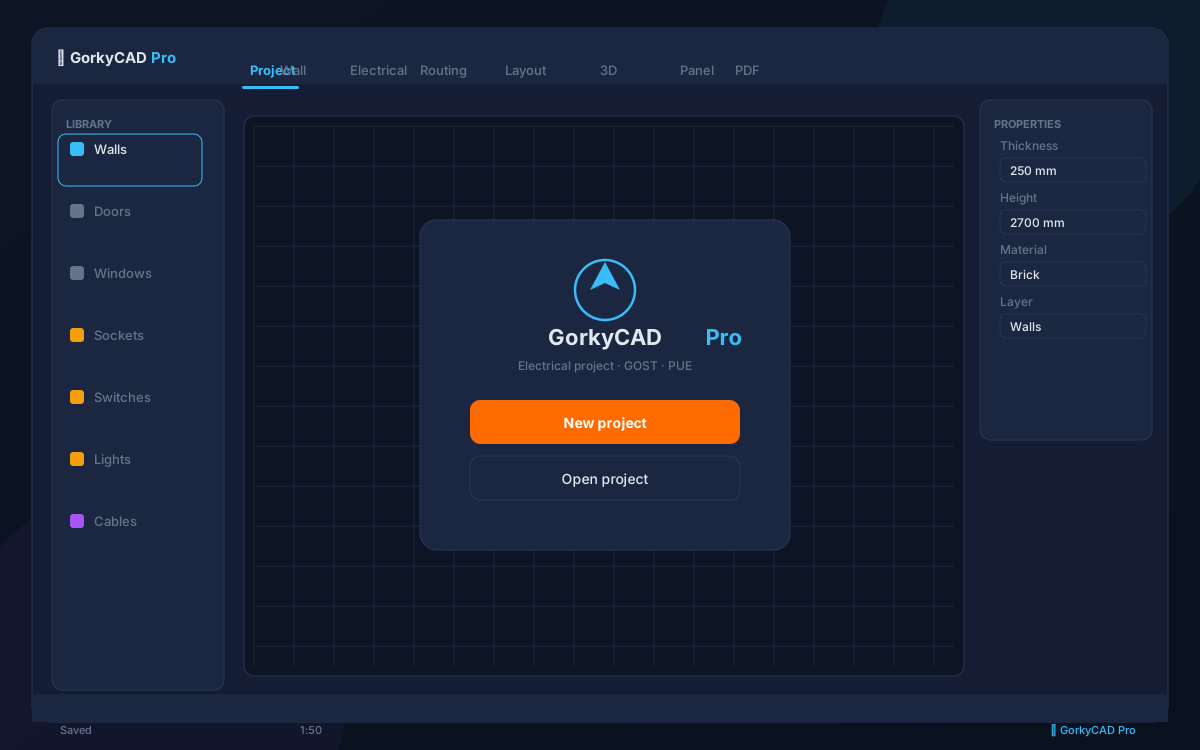
GorkyCAD Pro runs entirely in your browser — no installation, no licenses, no IT department needed.
System Requirements
- Browser: Chrome 100+, Firefox 100+, Edge 100+, Safari 16+
- Internet: Required for first load (~4 MB). Offline mode available after caching.
- Screen: 1280×720 minimum, 1920×1080 recommended
- RAM: 2 GB free minimum, 4 GB recommended for large projects
Opening the Application
Navigate to gorkycad.pro/cad and sign in with your account. New users get a 14-day free trial of the Professional plan — no credit card required.
Your First Project
-
Create a new project — Click
+ New Projecton the dashboard. Name it (e.g. “Residential 24kW”) and select the standard: IEC, IS (Indian Standards), or GOST (Russian standard). -
Draw the floor plan — Use the Wall tool (press
W) to outline the building. Click-and-drag to place walls. HoldShiftfor orthogonal mode (90° angles). Add doors and windows with theDhotkey. -
Place electrical objects — Switch to the Electrical tab. Drag sockets, switches, lights, and distribution boards onto the plan. Objects snap to walls automatically.
-
Route cables — Select the Cable tool (
C). Click the first object, then the second. GorkyCAD calculates the optimal route through walls and cable trays. -
Review the single-line diagram — It’s generated automatically! Open the SLD panel to verify protection devices, cross-sections, and selectivity.
-
Open the 3D cabinet — Double-click any distribution board. Arrange DIN rail modules in the 3D view. GorkyCAD checks thermal limits and fill factor.
-
Export documentation — Click
Export → Full Project PDF. Get drawings, calculations, BOM, and cable schedule in one document.
Interface Overview
| Panel | Description |
|---|---|
| Toolbar (left) | Drawing tools: Wall, Door, Window, Dimension, Cable |
| Properties (right) | Edit selected object properties — voltage, power, phase |
| Layers (top) | Toggle visibility: Floor Plan, Electrical, Cables, SLD |
| Status bar (bottom) | Project info, auto-save indicator, online/offline status |
Keyboard Shortcuts
| Key | Action |
|---|---|
W | Wall tool |
D | Door tool |
E | Electrical object |
C | Cable tool |
M | Dimension |
Space | Pan canvas (hold + drag) |
Ctrl+Z | Undo |
Ctrl+Shift+Z | Redo |
Delete | Delete selected |
Escape | Cancel current tool |
Next Steps
- Read the Floor Plan guide for detailed wall drawing
- Explore Electrical Objects — all 50+ types
- Set up your Standards — GOST, IEC, or IS
Frequently asked questions
Yes, all articles and calculators are completely free.
The site offers 21 free calculators: cable sizing, breakers, RCD, voltage drop and more.
In GorkyCAD Pro: plans, panels, calculations and a PDF set for free.
Write to hello@gorkycad.pro — specialists will review and correct it.